
// Time tracking app for construction crews
Hours from the field, costed on the job.
GPS clock-in feeds timesheets, timesheets feed job costs, and the same app carries the forms, the equipment and the estimates. One login for the whole jobsite day.
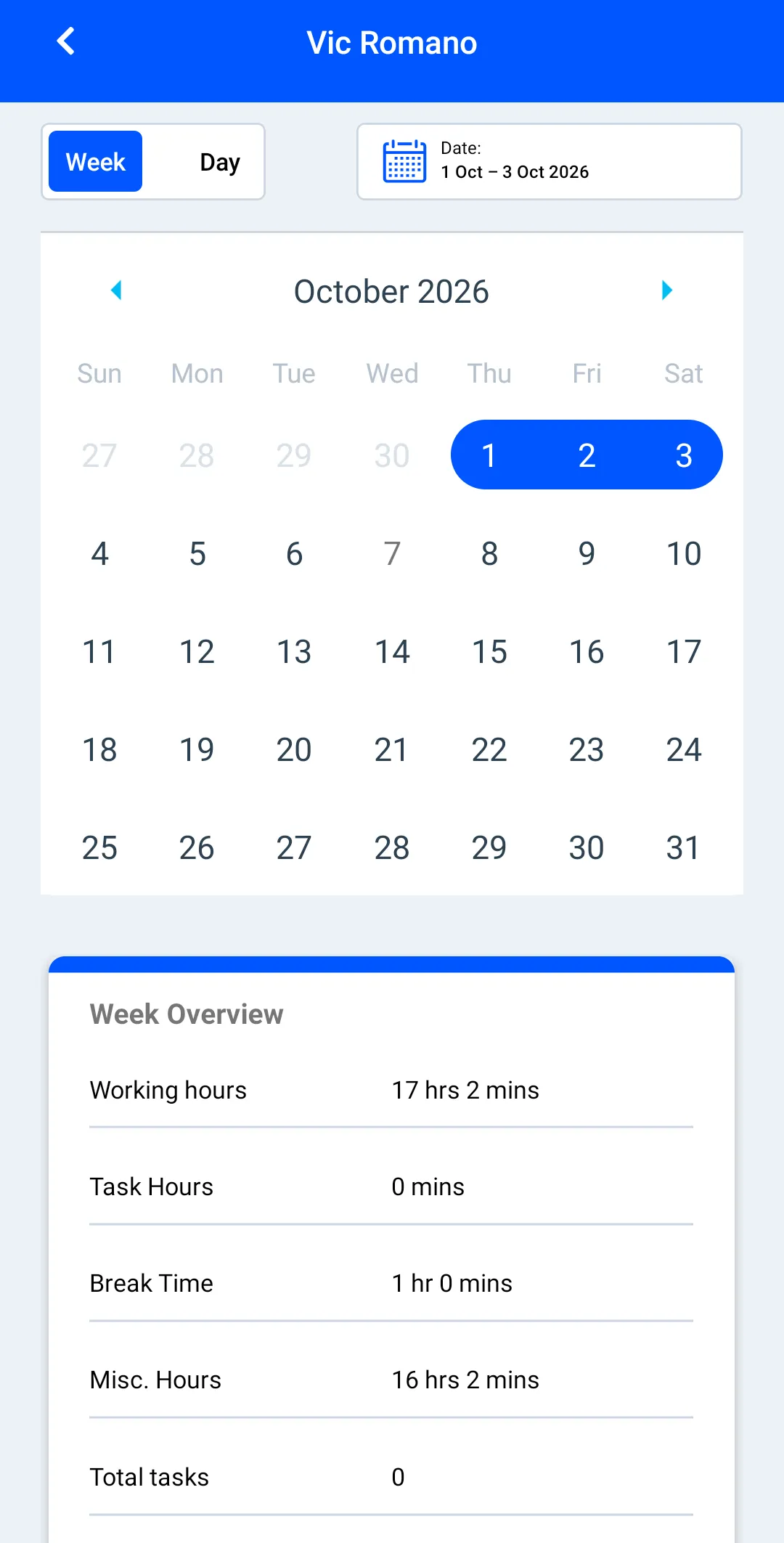
01 — Four tools, one job record
Timesheets · Forms · Equipment · Estimating
Each one works alone. Together they mean a jobsite day gets recorded once, in one place, priced against one estimate.
Construction timesheet app
Payroll-ready timesheets nobody had to fill out
Shifts clock in against jobs and tasks; timesheets assemble themselves. Filter by people, crew or job; export CSV for payroll; edit with an audit trail when the field forgets.
- GPS-checked clock-in against the job’s geofence, with a violations report
- Crew timesheet view for foremen, company export for the office
- Work-time based job costing — hours land on the job they served
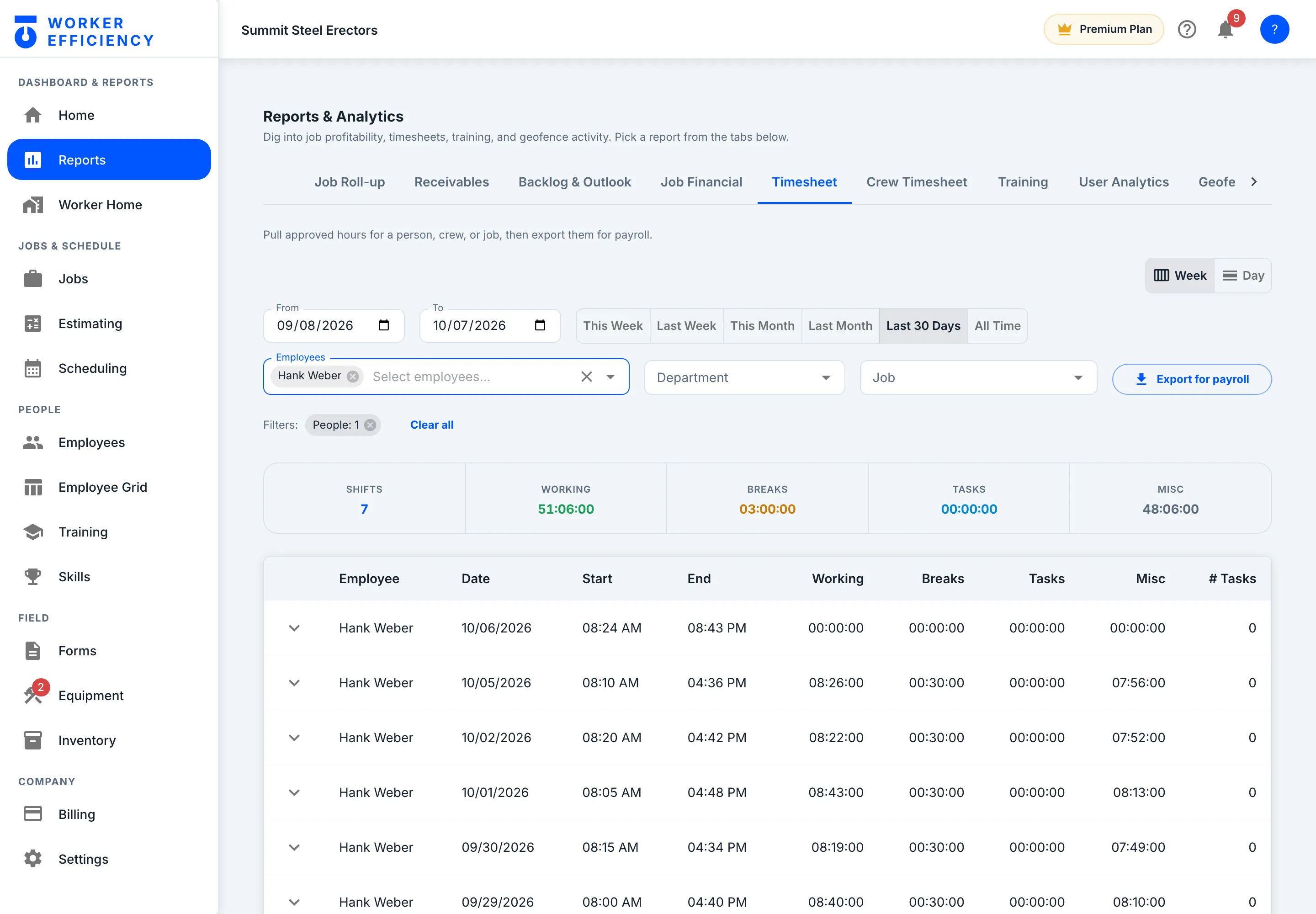
Construction forms app
Daily reports and safety forms from the phone
Start from the template library — adding one creates an editable draft you customize before your team sees it — or build your own: safety inspection, pre-op checklist, daily report. Crews file it from the field with photos and signatures; submissions attach to the job and export as PDF.
- Form builder with required fields, photos, signatures
- Library templates tagged OSHA Required, GC Required or Insurance / Audit — filter by trade, form type or compliance
- Each submission lists its job and template; export one or a batch to PDF
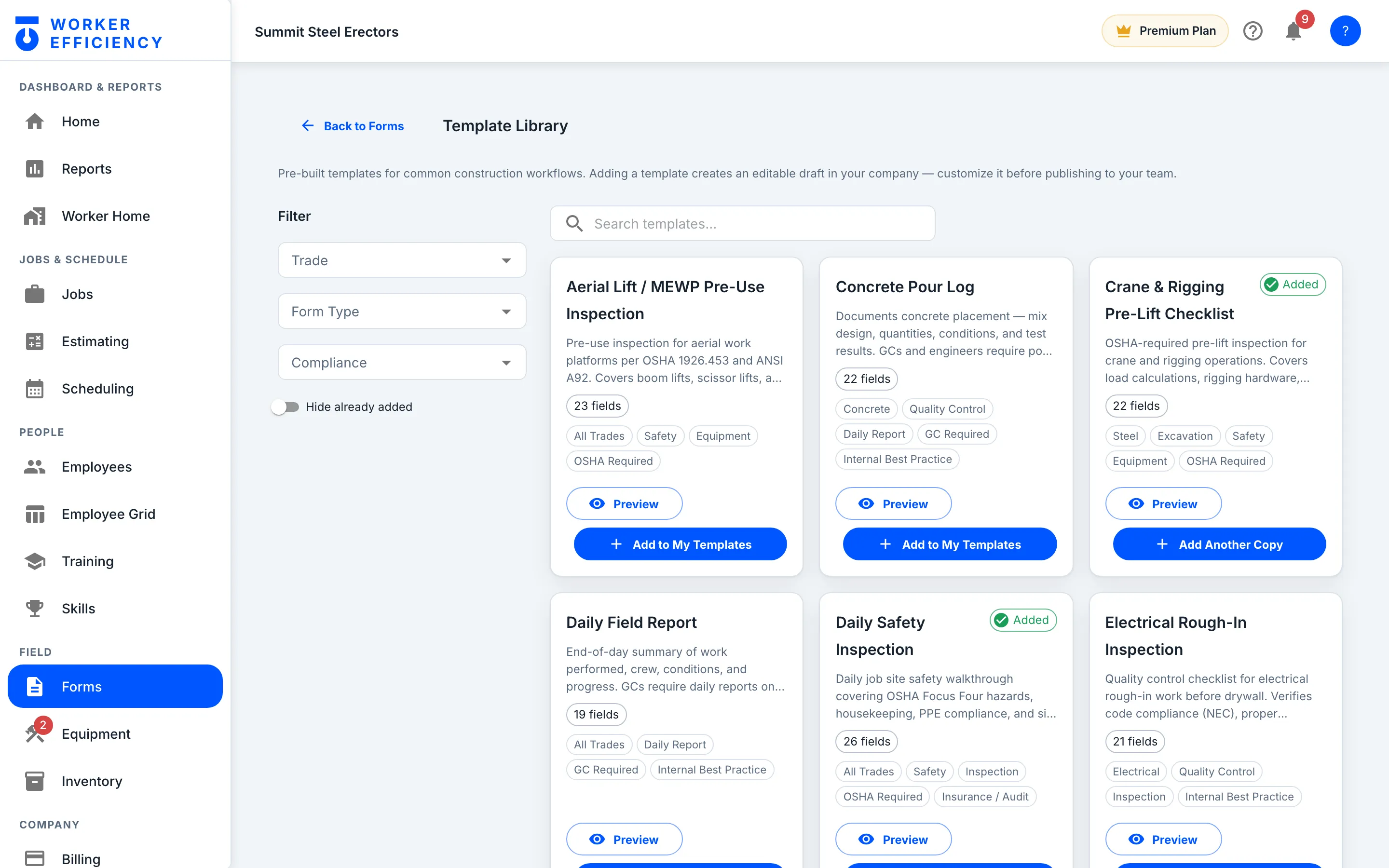
Equipment tracking
Know where the boom lift is — and when it's due for service
Every machine, owned or rented, with its type, status, job assignment and next service date — and overdue rentals flagged at the top of the list. Each one gets its own QR code that opens its record in the mobile app, and pre-use inspections run through the same job forms your crew already files.
- Assign a machine to a worker on a job, and its usage clock starts when they start a task there
- Next-service date on every row, so the lift doesn't die mid-pour
- Pre-use inspections run through forms, prompted at clock-in — one habit, not two
Construction estimating
Estimates that become jobs, not PDFs
Sections and line items with cost types, markup and margin — built with plain-language guidance at every step. Approve it, convert it, and the job inherits the numbers the bid promised.
- Guided stepper: create → add costs → set pricing → submit → approve → convert to job
- Per-line markup feeds the bid; margin becomes the job's target
- The demo bid on screen: Harborview Medical Tower — Steel Frame, a $1,057,277 contract price at 18.2% margin
02 — Scheduling · Capacity
Know which job is going to run late — while there's still time to fix it
The Schedule board turns the shifts your foremen already build and the hours your estimate already planned into one verdict per job: on pace, or how far behind. Nobody types a projection.
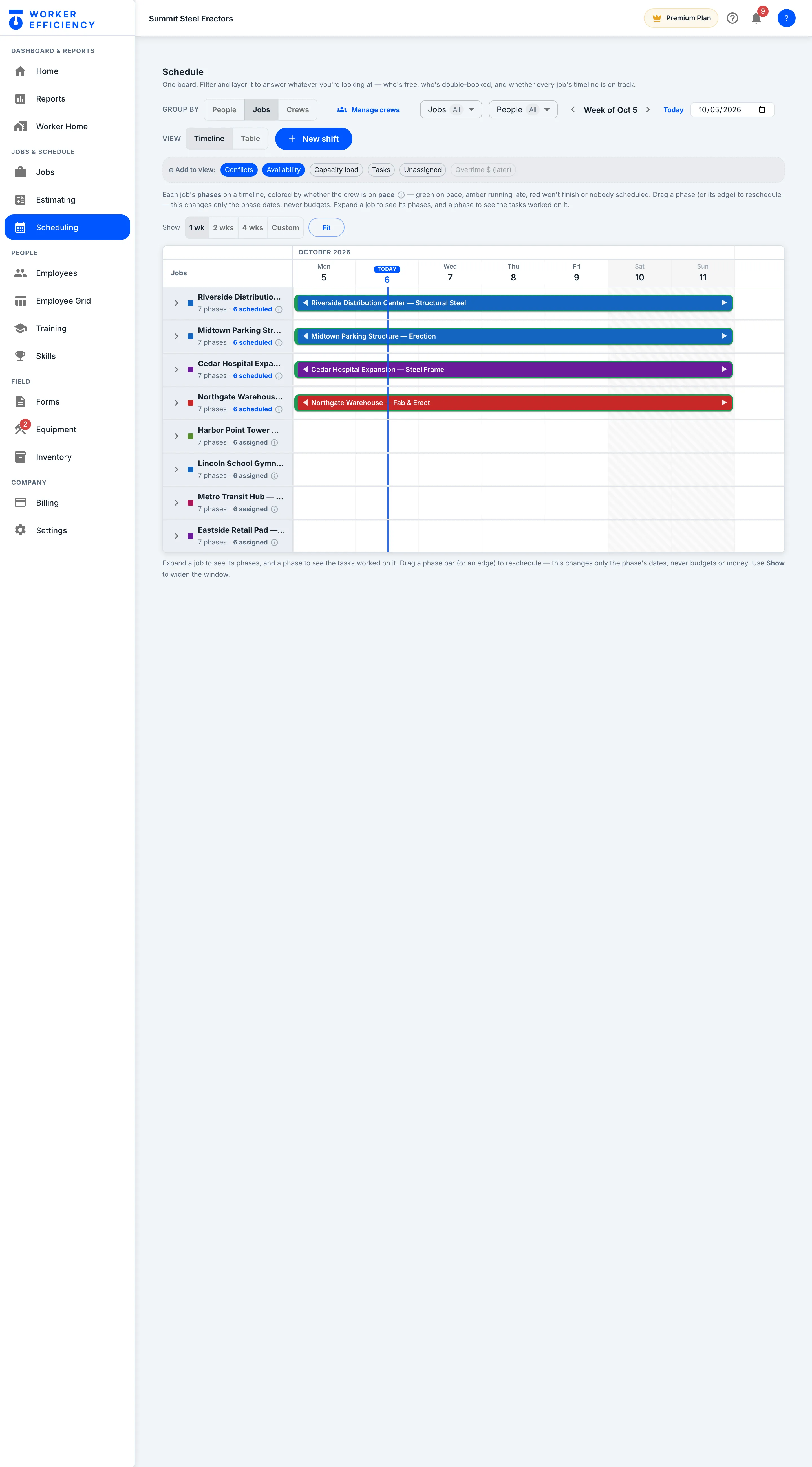
You do Open Scheduling and group by Jobs. Read the frame around each bar. Nothing to calculate.
Every job with dated phases and planned hours gets a The app's own definition: whether a job will finish inside its phase dates at the current crew. Math: hours left ÷ crew hours scheduled per week = weeks needed, compared to weeks left in the window. verdict, and the board draws it as the frame around the job's bar: green on pace, amber running late, red won't finish or nobody scheduled — the legend sits right above the grid. The fill is just the job's own color, so Northgate Warehouse's red-filled bar still wears a green frame. In the demo company's week of Oct 5, the jobs with crews on the schedule — Riverside Distribution Center, Midtown Parking Structure, Cedar Hospital Expansion and Northgate Warehouse — all sit in green frames: on pace.
A green frame isn't a guess. The app takes the hours still left on the job's phases, divides them by the crew hours actually on the schedule — averaged over the next four weeks of shifts — and compares the weeks that needs with the weeks left in the job's The app's own definition: a phase's start-to-end dates. A week is 'in window' if it overlaps a phase's dates.. Fits inside, and the frame stays green. Spills past it, and the frame turns amber while there's still time to add crew — red once it's two weeks or more behind, or when nobody is scheduled at all.
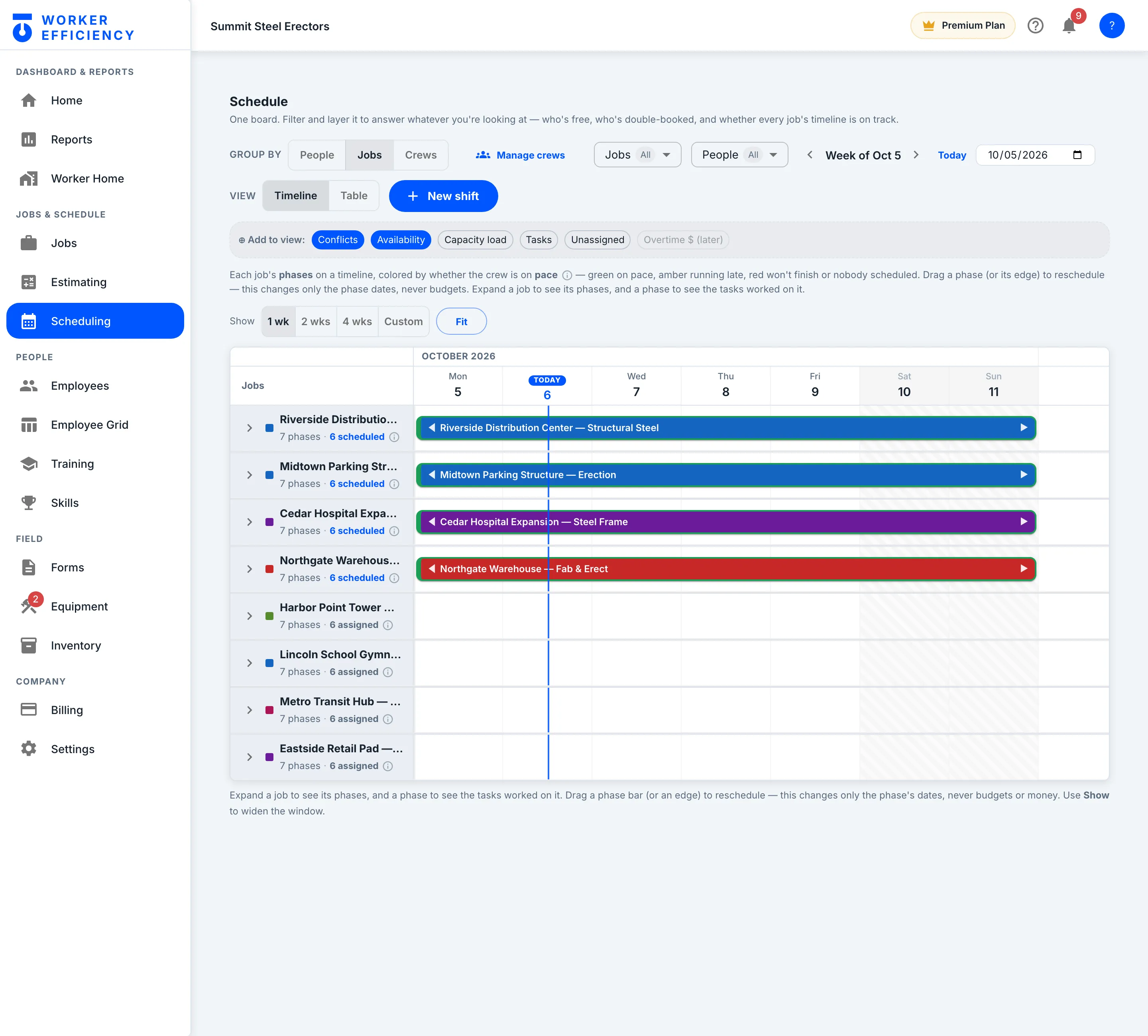
How many hours your crew is actually scheduled for on this job in a week, averaged over the next four weeks of shifts on the board. It is the number the pace math divides by — read from real shifts, not a target you set once and forget. is the other input, and it updates itself as schedules change. Drag a phase bar to move its dates, or drag an edge to resize it — the board says so itself, right under the grid: "Drag a phase bar (or an edge) to reschedule — this changes only the phase's dates, never budgets or money."
Field operations, in plain language
Does the time clock verify workers are on site?
When a job has a geofence, clock-in is checked against it with the phone’s GPS. Anyone who clocks in outside it is told so on the spot, and the clock-in lands on a geofence violations report for a manager to review. Clocking in from somewhere other than the job shows up instead of slipping through — without turning the app into a tracking collar: location is captured at clock events (clocking in, starting, pausing or finishing a task, clocking out), not followed all day.
Can workers still clock in if they hate apps?
It is one button. Shift starts, timer runs, shift ends, percent complete gets asked. There is no Friday timesheet to fill out afterwards — it builds itself from those clock events.
What kinds of job forms are included?
The template library includes daily safety inspections, forklift and aerial-lift pre-use checklists, job hazard analysis, incident and near-miss reports and daily field reports — plus a form builder for your own. Photo and signature fields are built in, and submissions attach to the job.
Do the estimates do takeoffs?
No takeoff engine — estimates are section-and-line-item based with labor hours, materials, markup and margin. Their superpower is what happens after: Convert to Job turns the approved estimate into a job whose live costs report against those exact numbers.
What does "On pace" actually mean?
It means the job can finish inside its phase window at the rate its crew is actually being scheduled right now — hours left divided by crew hours scheduled per week (averaged over the next four weeks of shifts), compared against the weeks left in the window. On the Schedule board it is the green frame around a job’s bar. A job with plenty of budget left but a thin schedule turns amber — and, with the Capacity load layer on, reads "~N wk late" — while there is still time to fix it, not the week after the date passes.
// THE REST OF THE APP
Everything else in Worker Efficiency
It's one app. Each part below uses the same jobs, crew and hours, so nothing gets typed twice.
KNOW YOUR MONEY
- Estimating Build the bid line by line, then convert it to the job
- Job Costing Bid it, track it, read the live margin
- Scheduling & Change Orders Put the crew on the board; bill the scope that grows
- Inventory One reusable price list, dropped into any bid
- Field Operations You're here Time, forms, equipment, estimates
How it works: one job, start to finish → Tour the app on real screens →
One app for the whole jobsite day.
Clock-in to closeout without retyping a number. Start with timesheets; the rest lives in the same app when you need it.